

You’re in. Welcome to the OneApp beta.


First, what this is: OneApp is the companion app for OneDevice — a small wellness device that gives off gentle, low tones designed to support things like focus, relaxation and recovery. The app is how you tell OneDevice what to do. Start with a quick voice check-in to see how you’re feeling, or jump straight into a mode if you already know what you want — either way, the device tunes itself to match.
You’re one of a small group testing it on iPhone and Android before it goes live to everyone. Use it like it’s yours, then tell us the truth — that’s how we get this right.

There’s the check-in way, and the straight-to-it way.
Both take under a minute. Which one you use depends on whether you want to know where you’re starting from, or you already do.
Check in, then tune in.
Open the app and let it read how you're doing — with a quick voice analysis or an HRV sync from your wearable. That gives you a read on where you're starting from. Then move into a mode that matches, and let OneDevice help shift how you feel.
Best when you’re not quite sure what you need, or you want to notice the before-and-after.
Just pick a mode.
Skip the check-in entirely. Tap the mode that matches what you need, and go:
- Circadian — follows your day on its own, morning through night.
- Focus — 60 minutes, for sustained attention and mental clarity.
- Meditation — 60 minutes, for relaxation and a slower, meditative state.
- Solfeggio — cycles the full sequence, or sit with one tone you choose.
- Bio-Tuning® — your own frequency, if you’ve had it measured with a practitioner.
Best when you’re heading into work, into bed, or into anything you’ve done before.
Every mode is designed to support states like focus, relaxation and recovery. Nothing here treats, cures or diagnoses anything.

Your phone tunes the device by touch.
No pairing, no Bluetooth, no accounts to connect. You choose a mode, your phone taps out a gentle pattern, and OneDevice picks it up and starts giving off that tone.
Hold it flat against the back of your phone, port facing up.
That’s the whole gesture. Keep them together until your phone finishes its short pattern of vibrations — a few seconds — then set OneDevice down wherever you like.
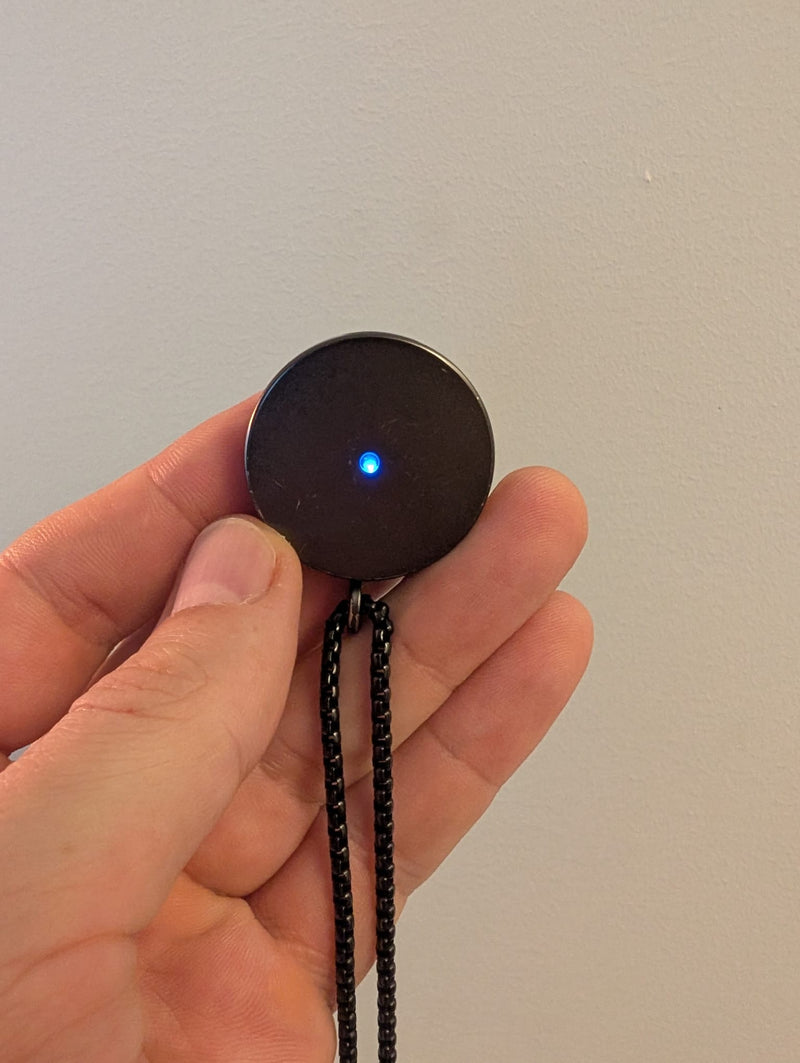
Face it up
Set OneDevice down with the port facing up. The light turns blue when it's ready to listen.
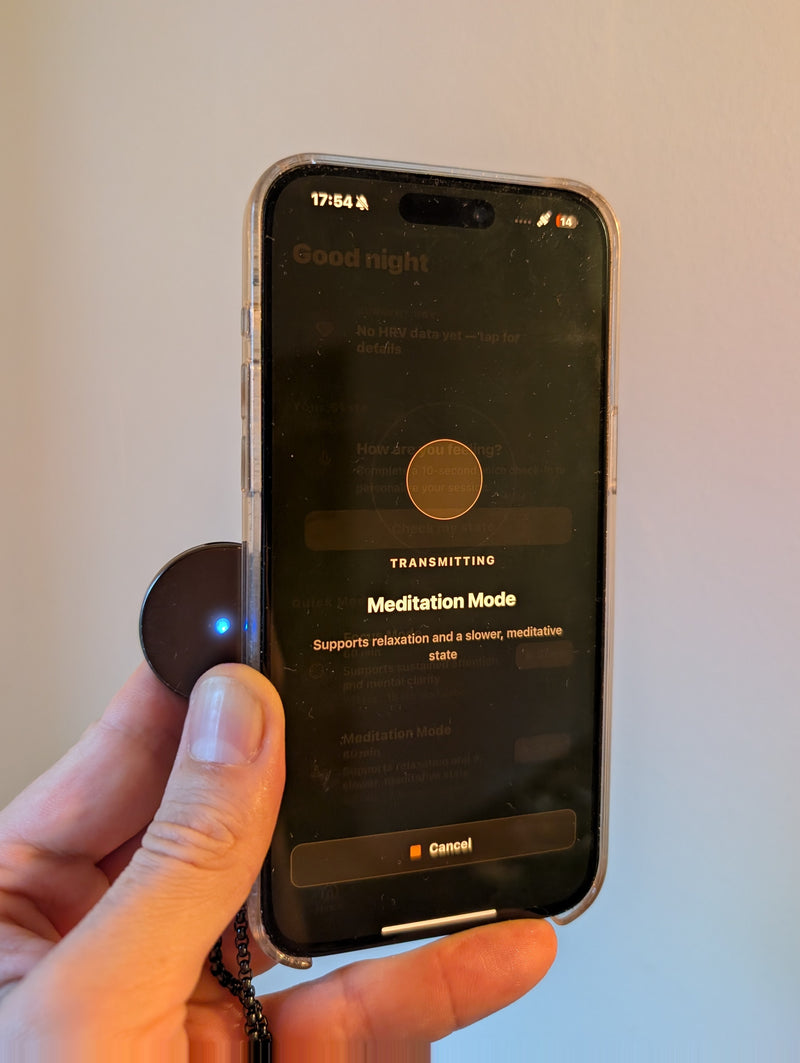
Hold them together
Open OneApp, tap the mode you want — like Circadian — and hold your phone against OneDevice while it transmits.
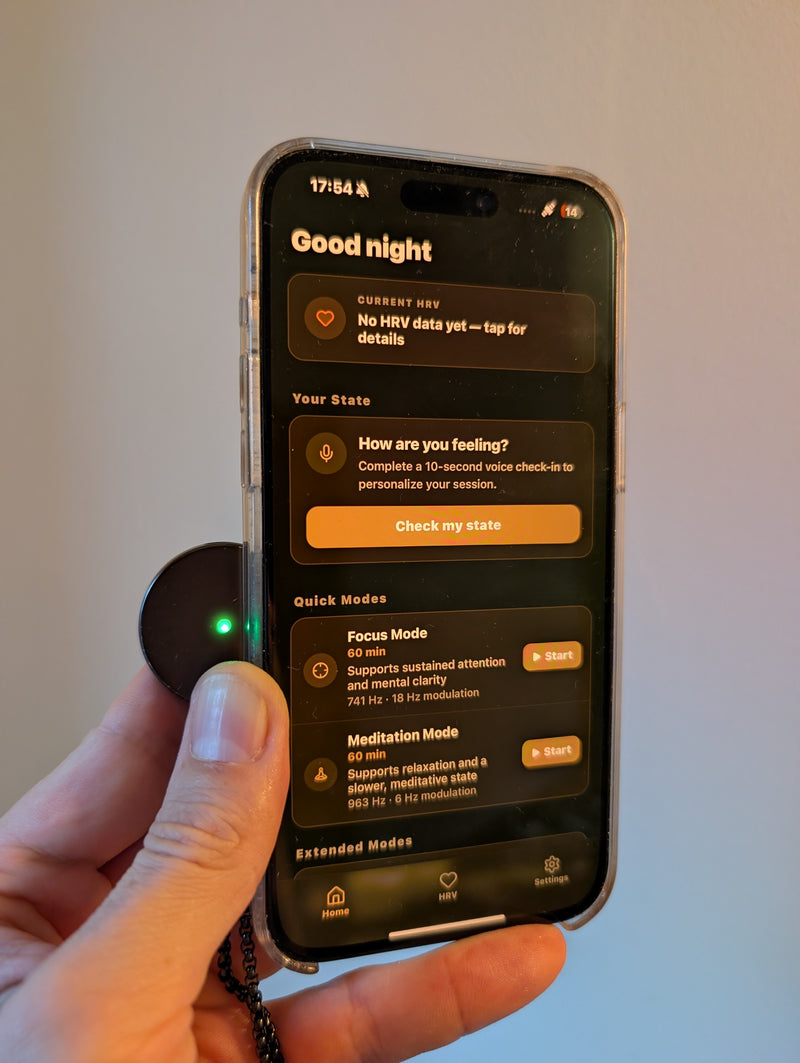
It turns green
When the light turns green, calibration's done. Set it down and go about your day.
Two minutes on your phone.
Pick your phone below — you only need one. Open this page on the phone you’ll be testing with.
iPhone
iOS- Tap the button above on your iPhone — it opens the OneApp beta page in TestFlight.
- Don’t have TestFlight yet? Tap Get TestFlight, install it from the App Store, then open the link above again.
- On the OneApp page, tap View in TestFlight, then Install.
- Once it’s done, open OneApp from your home screen.
TestFlight is Apple’s official app for beta testing — it’s how iPhone lets you install software that isn’t in the App Store yet.
Android
Google Play- Tap the button above on your Android phone.
- Install from Google Play as you would any other app.
- Open OneApp — you’re ready.
No extra steps here. If Play says the app is unavailable, reply to your invite and we’ll add your email.
Update your OneDevice to the latest firmware.
Plug OneDevice into a computer with a USB-C cable and our updater installs the newest firmware for you, with the latest improvements and fixes. It takes a few minutes, and you only need to do it once per update.
Open it on a Mac or Windows computer in Chrome or Edge. It won’t work on a phone, or in Safari or Firefox.
Use it for real, then tell us everything.
Treat OneApp as your everyday way to use OneDevice.
Use it regularly — a few sessions a week, in the moments you’d normally reach for the device.
Try more than one mode. At minimum, a Quick Mode and one Extended Mode.
Complete at least one 10-second voice check-in on the home screen.
Notice anything broken, confusing or slow — and send it to us while it’s fresh.
Two minutes, any time you notice something.
Keep the link handy and use it as often as you like — after a great session, after a confusing one, or the moment something goes wrong. You don’t need to wait until the end.
Open the feedback formSomething urgent? Just reply to the invite you received.
